How to monitor usage and review app sessions across your organization or inside one Playlab space.
A session is one conversation between a person and an app. Where you review sessions depends on what you’re looking at, so pick one first. Members see their own sessions under History in the left sidebar.
Across your organization
In one space
Admin → Sessions lists every session in your organization, from every space and app. It’s visible to organization Owners.
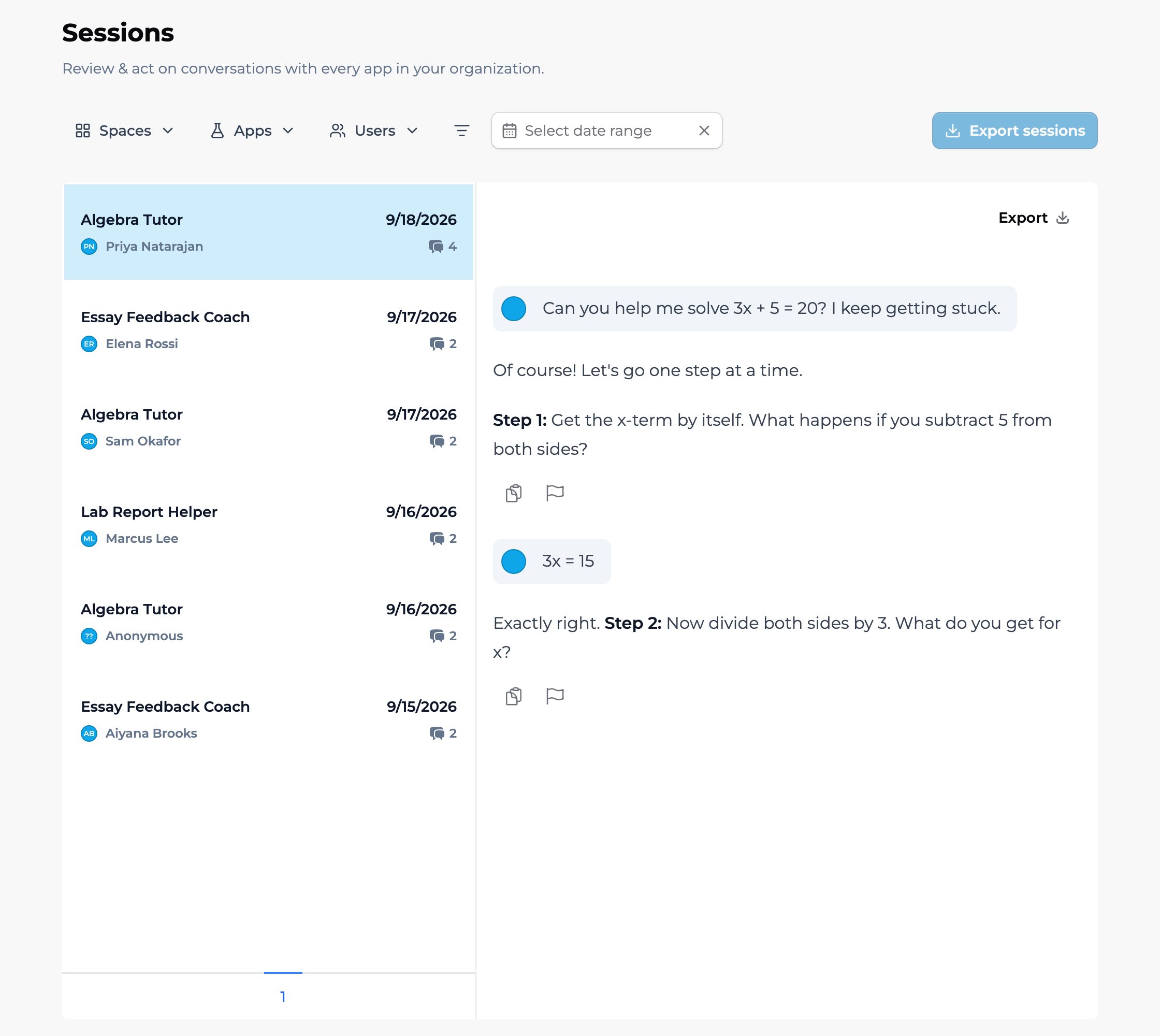
In the left sidebar, under Admin, select Sessions. Sessions are listed on the left; click one to read its full transcript on the right.
Admin → Sessions: sessions on the left, the full transcript on the right, with the Spaces, Apps, and Users filters across the top.
The toolbar across the top lets you narrow what you see:
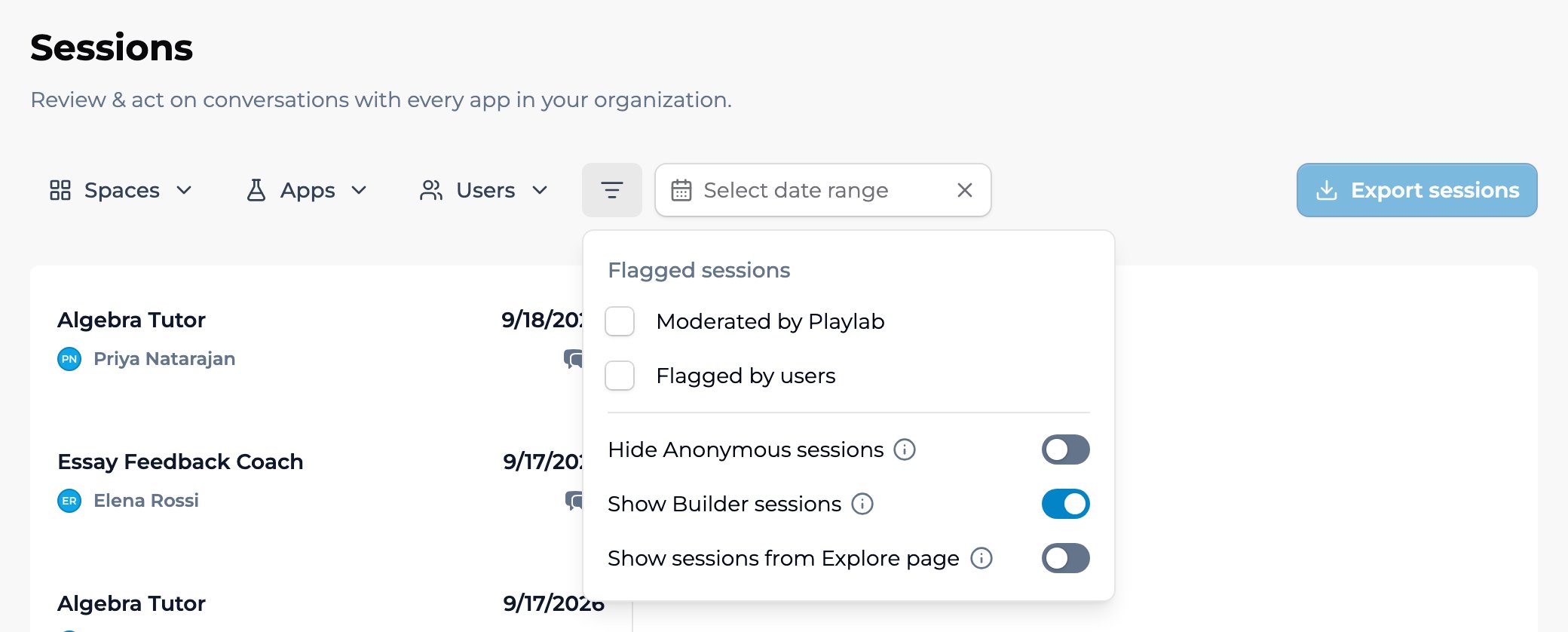
The Sessions toolbar with More filters (the filter icon) open: Flagged sessions (Moderated by Playlab, Flagged by users), plus switches for Hide Anonymous sessions, Show Builder sessions, and Show sessions from Explore page.
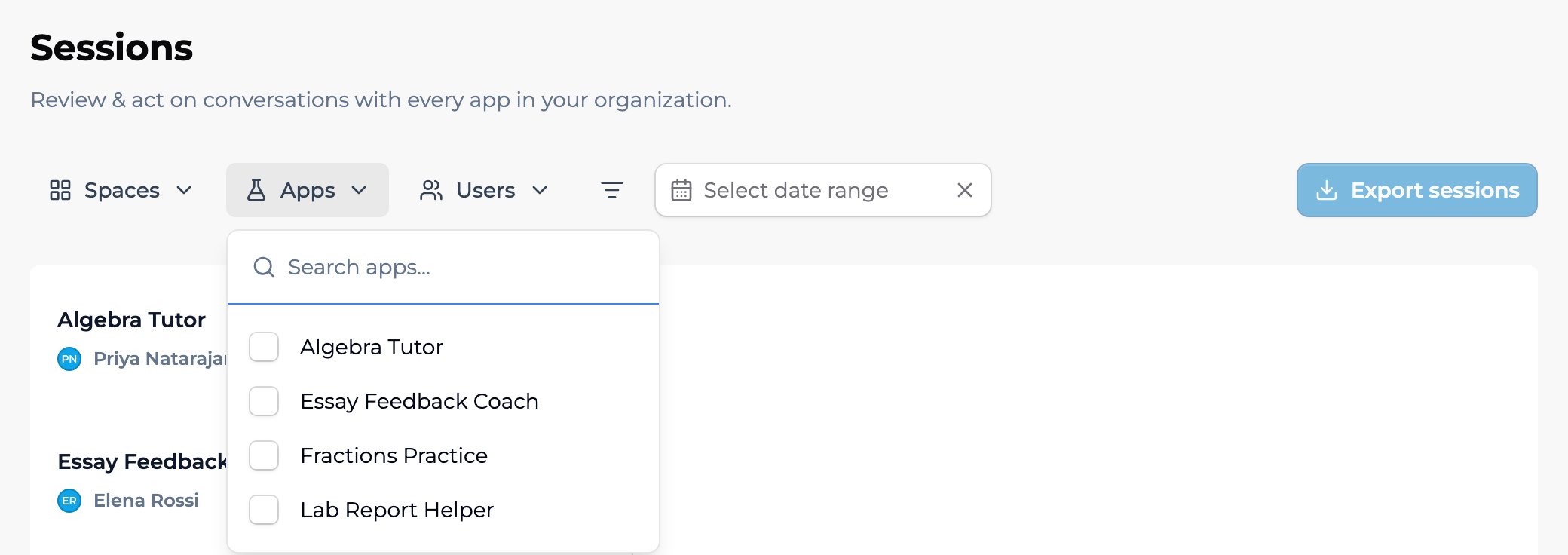
Spaces, Apps, and Users. Each opens a panel with a search box and a checkbox list. Tick as many as you need. You’re listed first in Users, marked (me).
The Apps filter open: search for an app, then tick the ones you want to see.
More filters (the filter icon) holds the rest:
Flagged sessions: tick Moderated by Playlab for sessions where Playlab’s moderation hid a message, Flagged by users for sessions where someone reported a reply, or both.
Hide Anonymous sessions: leave out sessions from people who used an app without signing in.
Show Builder sessions: on by default. Includes sessions someone had while previewing an app they were building; turn it off to hide them.
Show sessions from Explore page: include sessions from people who started an app through the Explore page.
Date range. Pick a window, or clear it to see everything.Open at the moderated message. This switch appears while a Flagged sessions box is ticked. Turn it on and each session opens right at the message that needs attention, so you can review it first and then scroll for context. For a video walkthrough, see Safety Moderation for Organizations.Export sessions. Downloads the sessions that match your filters as a JSON file. Set a date range of one month or less first. See Exporting activity data.Filters combine: one user’s flagged sessions on one app in the last week is one path through the same page.
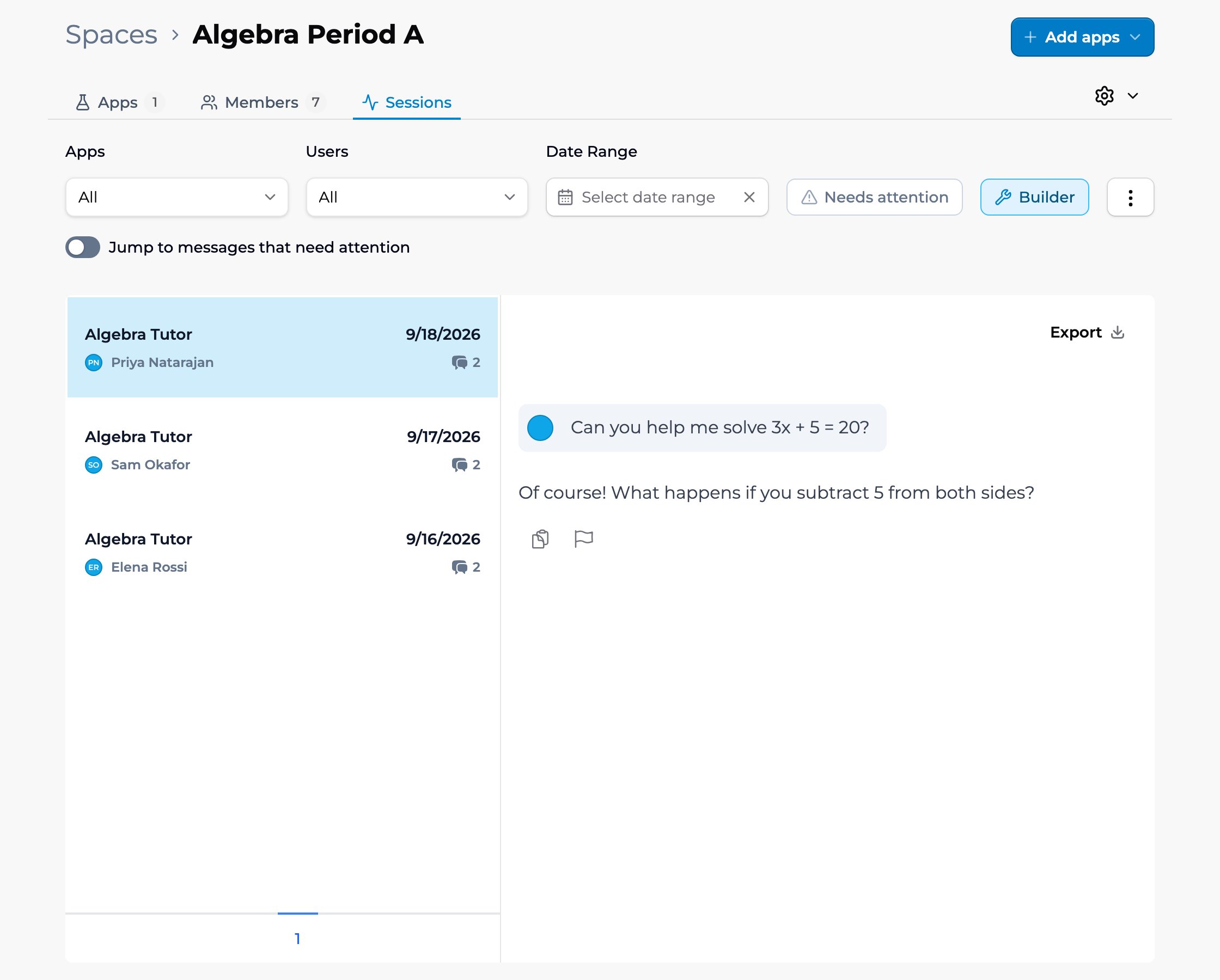
A space’s Sessions tab lists every session that took place in that space. It’s visible to space owners, managers, and organization Owners.Open the space and select the Sessions tab. Sessions are listed on the left; click one to read its full transcript on the right.
A space's Sessions tab: filters for Apps, Users, and Date Range, the Needs attention and Builder toggles, and the ⋮ menu.
Apps. Show sessions for one specific app, or all of them.Users. Show sessions from one member, or all of them.Date Range. Pick a window or a custom range, or clear it to see everything.Needs attention. Show only sessions with a moderated or user-flagged message. Pair it with the Jump to messages that need attention switch to step straight through the messages that matter.Builder. On by default, so the list includes sessions from people previewing an app while building it, marked with a Builder tag. Turn it off to see only real student usage.From the ⋮ menu you can also:
Export session data (JSON): download the currently filtered sessions as a JSON file. The date range must be one month or less.
Show community sessions: include sessions from people who started the app through the Explore page.
A few things teachers and admins have asked about, and that have worked:Set a weekly review cadence. Open Sessions every Friday and scan for sessions that stalled or members who have not engaged. Five minutes catches most issues.Use date filtering to avoid being overwhelmed. The all-time view is rarely useful for monitoring. Last 7 days or last 14 days is the right window.Look at flags first. In Admin → Sessions, tick both Flagged sessions boxes under More filters. In a space, turn on Needs attention. Anything flagged is worth a quick read.Open sessions that look unusual. A very long session for a brief assignment, or a very short session for a complex assignment, are signals worth investigating.
Yes. In Admin → Sessions, set a date range and click Export sessions. In a space’s Sessions tab, choose Export session data (JSON) from the ⋮ menu. Both download the currently filtered sessions as JSON. Org Owners can also export org-wide Insights as CSVs. See Exporting activity data.
What is the difference between Admin → Sessions and a space's Sessions tab?
A space’s Sessions tab is scoped to one class. Admin → Sessions covers every space in the org and lets you filter to flagged sessions across all of them. See Centralized org monitoring.
How long is activity history retained?
Sessions aren’t removed when you archive a space. A session does disappear if the member deletes it from their History. In a space’s Sessions tab, a member’s sessions also drop out if they’re removed from the space.
Can students see other members' activity?
No. Members see only their own sessions, under History. Other members’ sessions are visible to space owners and managers, and to organization Owners.
Can I get notifications when there's new activity?
Not for everyday activity, and an open Sessions list doesn’t refresh on its own. Safety is the exception: organization Owners get emails when Playlab moderates a message, and space owners and managers are emailed about self-harm flags. See Safety Moderation for Organizations.
Can I exclude specific apps from Sessions?
Use the Apps filter to focus on the apps you care about. There’s no permanent exclude option today.